Conversion metrics
Conversion metrics let you measure how often one event leads to another for a specific entity within a defined time window.
For example, you can track how often a user (entity) who visits your site (base event) makes a purchase (conversion event) within 7 days (time window). To set this up, you’ll specify both the time range and the entity that links/joins the two events.
Conversion metrics are different from ratio metrics because you need to include an entity in the pre-aggregated join.
Parameters
The specification for conversion metrics is as follows:
Refer to additional settings to learn how to customize conversion metrics with settings for null values, calculation type, and constant properties.
The following code example displays the complete specification for conversion metrics and details how they're applied:
Conversion metric example
The following example will measure conversions from website visits (VISITS table) to order completions (BUYS table) and calculate a conversion metric for this scenario step by step.
Suppose you have two semantic models, VISITS and BUYS:
- The
VISITStable represents visits to an e-commerce site. - The
BUYStable represents someone completing an order on that site.
The underlying tables look like the following:
VISITS
Contains user visits with USER_ID and REFERRER_ID.
| Loading table... |
BUYS
Records completed orders with USER_ID and REFERRER_ID.
| Loading table... |
Next, define a conversion metric as follows:
To calculate the conversion, link the BUYS event to the nearest VISITS event (or closest base event). The following steps explain this process in more detail:
Step 1: Join VISITS and BUYS
This step joins the BUYS table to the VISITS table and gets all combinations of visits-buys events that match the join condition where buys occur within 7 days of the visit (any rows that have the same user and a buy happened at most 7 days after the visit).
The SQL generated in these steps looks like the following:
select
  v.ds,
  v.user_id,
  v.referrer_id,
  b.ds,
  b.uuid,
  1 as buys
from visits v
inner join (
    select *, uuid_string() as uuid from buys -- Adds a uuid column to uniquely identify the different rows
) b
on
v.user_id = b.user_id and v.ds <= b.ds and v.ds > b.ds - interval '7 days'
The dataset returns the following (note that there are two potential conversion events for the first visit):
| Loading table... |
Step 2: Refine with window function
Instead of returning the raw visit values, use window functions to link conversions to the closest base event. You can partition by the conversion source and get the first_value ordered by visit ds, descending to get the closest base event from the conversion event:
select
  first_value(v.ds) over (partition by b.ds, b.user_id, b.uuid order by v.ds desc) as v_ds,
  first_value(v.user_id) over (partition by b.ds, b.user_id, b.uuid order by v.ds desc) as user_id,
  first_value(v.referrer_id) over (partition by b.ds, b.user_id, b.uuid order by v.ds desc) as referrer_id,
  b.ds,
  b.uuid,
  1 as buys
from visits v
inner join (
    select *, uuid_string() as uuid from buys
) b
on
v.user_id = b.user_id and v.ds <= b.ds and v.ds > b.ds - interval '7 day'
The dataset returns the following:
| Loading table... |
This workflow links the two conversions to the correct visit events. Due to the join, you end up with multiple combinations, leading to fanout results. After applying the window function, duplicates appear.
To resolve this and eliminate duplicates, use a distinct select. The UUID also helps identify which conversion is unique. The next steps provide more detail on how to do this.
Step 3: Remove duplicates
Instead of regular select used in the Step 2, use a distinct select to remove the duplicates:
select distinct
  first_value(v.ds) over (partition by b.ds, b.user_id, b.uuid order by v.ds desc) as v_ds,
  first_value(v.user_id) over (partition by b.ds, b.user_id, b.uuid order by v.ds desc) as user_id,
  first_value(v.referrer_id) over (partition by b.ds, b.user_id, b.uuid order by v.ds desc) as referrer_id,
  b.ds,
  b.uuid,
  1 as buys
from visits v
inner join (
    select *, uuid_string() as uuid from buys
) b
on
v.user_id = b.user_id and v.ds <= b.ds and v.ds > b.ds - interval '7 day';
The dataset returns the following:
| Loading table... |
You now have a dataset where every conversion is connected to a visit event. To proceed:
- Sum up the total conversions in the "conversions" table.
- Combine this table with the "opportunities" table, matching them based on group keys.
- Calculate the conversion rate.
Step 4: Aggregate and calculate
Now that you’ve tied each conversion event to a visit, you can calculate the aggregated conversions and opportunities . Then, you can join them to calculate the actual conversion rate. The SQL to calculate the conversion rate is as follows:
select
  coalesce(subq_3.metric_time__day, subq_13.metric_time__day) as metric_time__day,
  cast(max(subq_13.buys) as double) / cast(nullif(max(subq_3.visits), 0) as double) as visit_to_buy_conversion_rate_7d
from ( -- base
  select
    metric_time__day,
    sum(visits) as visits
  from (
    select
      date_trunc('day', first_contact_date) as metric_time__day,
      1 as visits
    from visits
  ) subq_2
  group by
    metric_time__day
) subq_3
full outer join ( -- conversion
  select
    metric_time__day,
    sum(buys) as buys
  from (
    -- ...
    -- The output of this subquery is the table produced in Step 3. The SQL is hidden for legibility.
    -- To see the full SQL output, add --explain to your conversion metric query.
  ) subq_10
  group by
    metric_time__day
) subq_13
on
  subq_3.metric_time__day = subq_13.metric_time__day
group by
  metric_time__day
Additional settings
Use the following additional settings to customize your conversion metrics:
- Null conversion values: Set null conversions to zero using
fill_nulls_with. Refer to Fill null values for metrics for more info. - Calculation type: Choose between showing raw conversions or conversion rate.
- Constant property: Add conditions for specific scenarios to join conversions on constant properties.
- Set null conversion events to zero
- Set calculation type parameter
- Set constant property
To return zero in the final data set, you can set the value of a null conversion event to zero instead of null. You can add the fill_nulls_with parameter to your conversion metric definition like this:
This will return the following results:
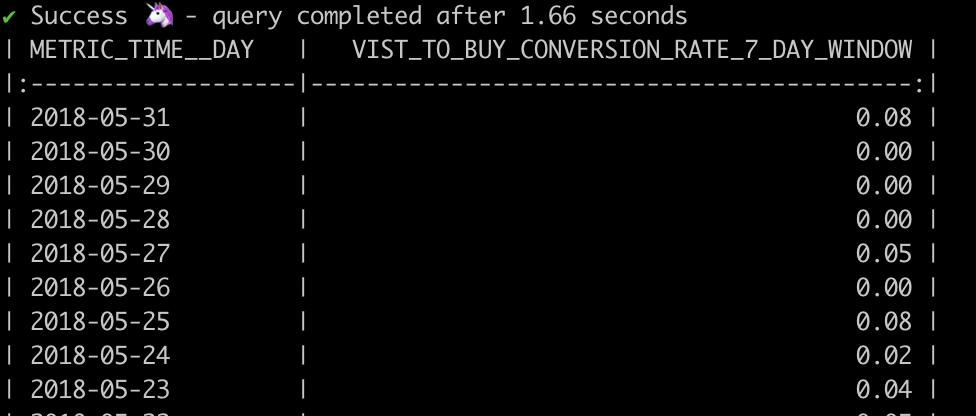 Conversion metric with fill nulls with parameter
Refer to Fill null values for metrics for more info.
Use the conversion calculation parameter to either show the raw number of conversions or the conversion rate. The default value is the conversion rate.
You can change the default to display the number of conversions by setting the calculation: conversion parameter:
Refer to Amplitude's blog posts on constant properties to learn about this concept.
You can add a constant property to a conversion metric to count only those conversions where a specific dimension or entity matches in both the base and conversion events.
For example, if you're at an e-commerce company and want to answer the following question:
- How often did visitors convert from
View Item DetailstoComplete Purchasewith the same product in each step?
- This question is tricky to answer because users could have completed these two conversion milestones across many products. For example, they may have viewed a pair of shoes, then a T-shirt, and eventually checked out with a bow tie. This would still count as a conversion, even though the conversion event only happened for the bow tie.
Back to the initial questions, you want to see how many customers viewed an item detail page and then completed a purchase for the same product.
In this case, you want to set product_id as the constant property. You can specify this in the configs as follows:
You will add an additional condition to the join to make sure the constant property is the same across conversions.
select distinct
  first_value(v.ds) over (partition by buy_source.ds, buy_source.user_id, buy_source.session_id order by v.ds desc rows between unbounded preceding and unbounded following) as ds,
  first_value(v.user_id) over (partition by buy_source.ds, buy_source.user_id, buy_source.session_id order by v.ds desc rows between unbounded preceding and unbounded following) as user_id,
  first_value(v.referrer_id) over (partition by buy_source.ds, buy_source.user_id, buy_source.session_id order by v.ds desc rows between unbounded preceding and unbounded following) as referrer_id,
  buy_source.uuid,
  1 as buys
from {{ source_schema }}.fct_view_item_details v
inner join
  (
    select *, {{ generate_random_uuid() }} as uuid from {{ source_schema }}.fct_purchases
  ) buy_source
on
  v.user_id = buy_source.user_id
  and v.ds <= buy_source.ds
  and v.ds > buy_source.ds - interval '7 day'
  and buy_source.product_id = v.product_id --Joining on the constant property product_id
Related docs
Was this page helpful?
This site is protected by reCAPTCHA and the Google Privacy Policy and Terms of Service apply.